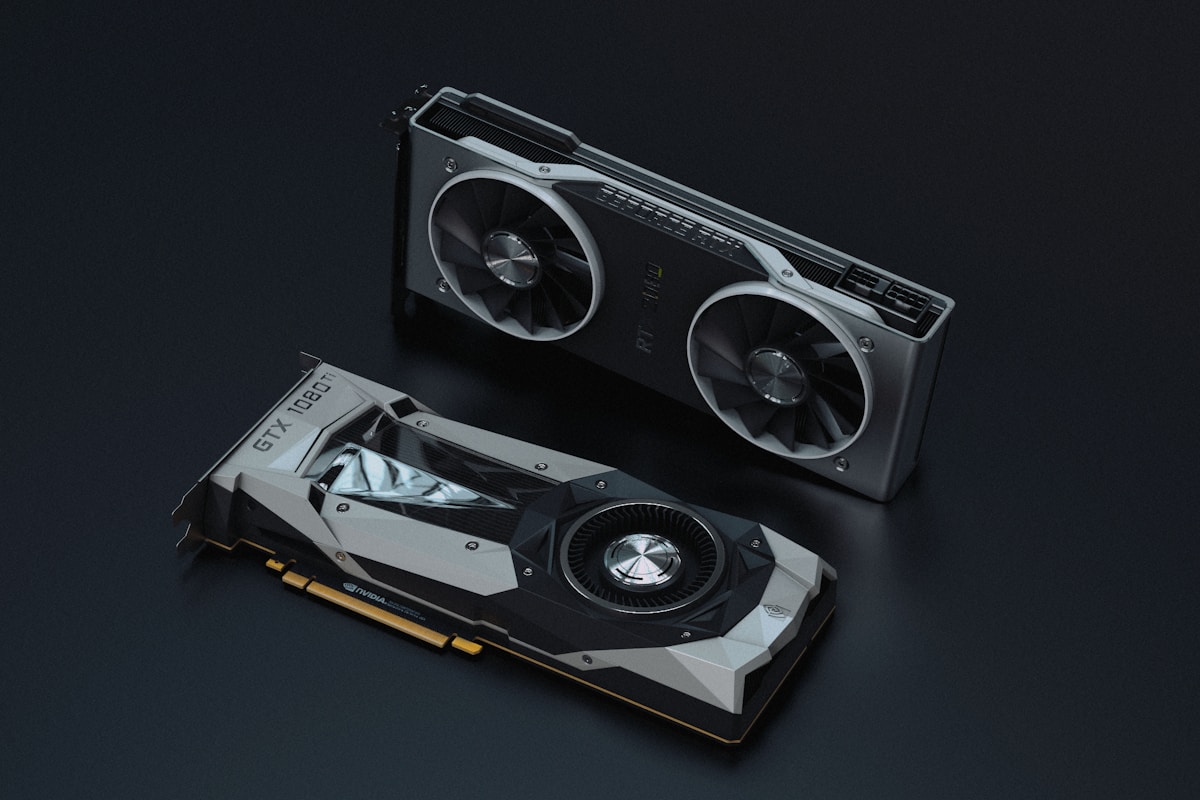
Windows GPU LLM Guide — Best Models for NVIDIA & AMD GPUs in 2026
A complete guide to running LLMs on Windows with NVIDIA and AMD GPUs. Covers VRAM requirements, setup tools, and model recommendations organized by GPU tier.
Windows is one of the most popular platforms for local AI. If you have an NVIDIA or AMD GPU, you can run models significantly faster than on CPU alone. Here's what you need to know.
Quick Answer
Any Windows PC with a dedicated GPU from the last 4-5 years can run local LLMs. The key factor is VRAM (video memory), not system RAM.
Tools That Work on Windows
| Tool | GPU Support | Setup | Best For |
|---|---|---|---|
| Ollama | NVIDIA, AMD | Easy | Most users |
| LM Studio | NVIDIA, AMD | Very easy | GUI preference |
| GPT4All | CPU only | Very easy | No GPU / low-spec |
Recommendation: Start with Ollama for the widest model support and best performance. Use LM Studio if you prefer a graphical interface.
Model Recommendations by VRAM
4GB VRAM (GTX 1650, RTX 3050)
Entry-level GPUs. Stick to small models with aggressive quantization.
| Model | Size | Quality | Speed | Best For |
|---|---|---|---|---|
| Llama 3.2 1B | 1.2 GB | Basic | Very fast | Simple tasks, testing |
| Llama 3.2 3B | 2.0 GB | Decent | Fast | General chat, light coding |
| Phi-4 Mini | 2.7 GB | Good | Fast | Reasoning, coding |
ollama run llama3.2:3b
ollama run phi4-mini
6-8GB VRAM (RTX 3060, RTX 4060, RX 7600)
The sweet spot for budget local AI. You can run most 7-8B parameter models comfortably.
| Model | Size | Quality | Speed | Best For |
|---|---|---|---|---|
| Mistral 7B | 4.4 GB | Good | Very fast | Conversation, general tasks |
| Llama 3.1 8B | 4.9 GB | Good | Fast | All-round use, coding |
| Qwen 2.5 7B | 4.7 GB | Good | Fast | Coding, multilingual |
| DeepSeek R1 8B | 4.9 GB | Very good | Medium | Reasoning, math, coding |
| Gemma 2 9B | 5.8 GB | Good | Fast | General tasks, multilingual |
ollama run llama3.1
ollama run qwen2.5:7b
ollama run deepseek-r1:8b
12GB VRAM (RTX 3060 12GB, RTX 4070)
Great performance tier. You can run 14B models and get noticeably better output quality.
| Model | Size | Quality | Speed | Best For |
|---|---|---|---|---|
| Qwen 2.5 14B | 9.0 GB | Very good | Fast | Coding, complex tasks |
| All 8GB tier models | varies | Good | Very fast | Same as above, faster |
ollama run qwen2.5:14bThe RTX 3060 12GB is one of the best value cards for local AI — affordable and enough VRAM for 14B models.
16-24GB VRAM (RTX 4090, RTX 3090, RX 7900 XTX)
High-end tier. Run large models with full quantization or multiple smaller models simultaneously.
| Model | Size | Quality | Speed | Best For |
|---|---|---|---|---|
| Qwen 2.5 32B (Q3) | ~15 GB | Excellent | Medium | Best quality at this tier |
| Llama 3.1 70B (Q2) | 25 GB | Good | Slow | Near-GPT-4 quality |
ollama run qwen2.5:32bNVIDIA vs AMD on Windows
NVIDIA (CUDA)
- Best supported — almost all tools and models work out of the box
- Ollama uses CUDA automatically when an NVIDIA GPU is detected
- LM Studio detects NVIDIA GPUs natively
- Widest model compatibility
AMD (ROCm)
- Improving rapidly — Ollama added ROCm support for Windows
- Some models may have slower inference than equivalent NVIDIA cards
- Works with Ollama and LM Studio
- RX 7000 series has the best support
Setup Tips
For NVIDIA: Install the latest drivers from NVIDIA's website. Ollama and LM Studio will detect your GPU automatically.
For AMD: Install the latest Adrenalin drivers. With Ollama, use:
# Ollama auto-detects AMD GPUs on Windows
ollama run llama3.1
If GPU acceleration isn't working, check that your drivers are up to date and restart Ollama.
CPU Fallback
No GPU? You can still run models on CPU with Ollama — just expect 5-10x slower inference. For CPU-only setups:
# These small models run reasonably fast on CPU
ollama run llama3.2:1b
ollama run phi4-mini
Or use GPT4All, which is specifically optimized for CPU inference.
Performance Tips
- Keep drivers updated — both NVIDIA and AMD release optimizations regularly
- Close GPU-heavy apps — games, video editors, and browsers with hardware acceleration compete for VRAM
- Use Q4_K_M quantization — best quality-to-speed ratio for most GPUs
- Monitor VRAM usage — if you see slow performance, your model may be too large and spilling to system RAM
- Consider cloud GPU for occasional heavy tasks — Runpod starts at $0.20/hr
When Your GPU Isn't Enough
If your GPU can't handle the models you need:
- Try a smaller quantization — Q3 instead of Q4 for the same model
- Use a smaller model — a good 14B model beats a heavily compressed 70B
- Try cloud GPU — Deploy Ollama on Runpod for access to A100s and RTX 4090s
Related Guides
Author

Categories
More Posts
Ollama vs LM Studio — Which Local AI Tool Should You Use?
ComparisonA detailed comparison of Ollama and LM Studio — the two most popular tools for running AI locally. Covers ease of use, features, and which fits your workflow.

Private AI Setup Guide — Run AI Completely Offline in 2026
TutorialA step-by-step guide to setting up a fully private, offline AI system. No data leaves your machine — covers model selection, tools, and privacy best practices.

Open WebUI vs AnythingLLM — Which Local AI Interface Is Right for You?
ComparisonOpen WebUI and AnythingLLM both add chat interfaces to local AI, but serve very different needs. Compare features, RAG capabilities, and ease of use.