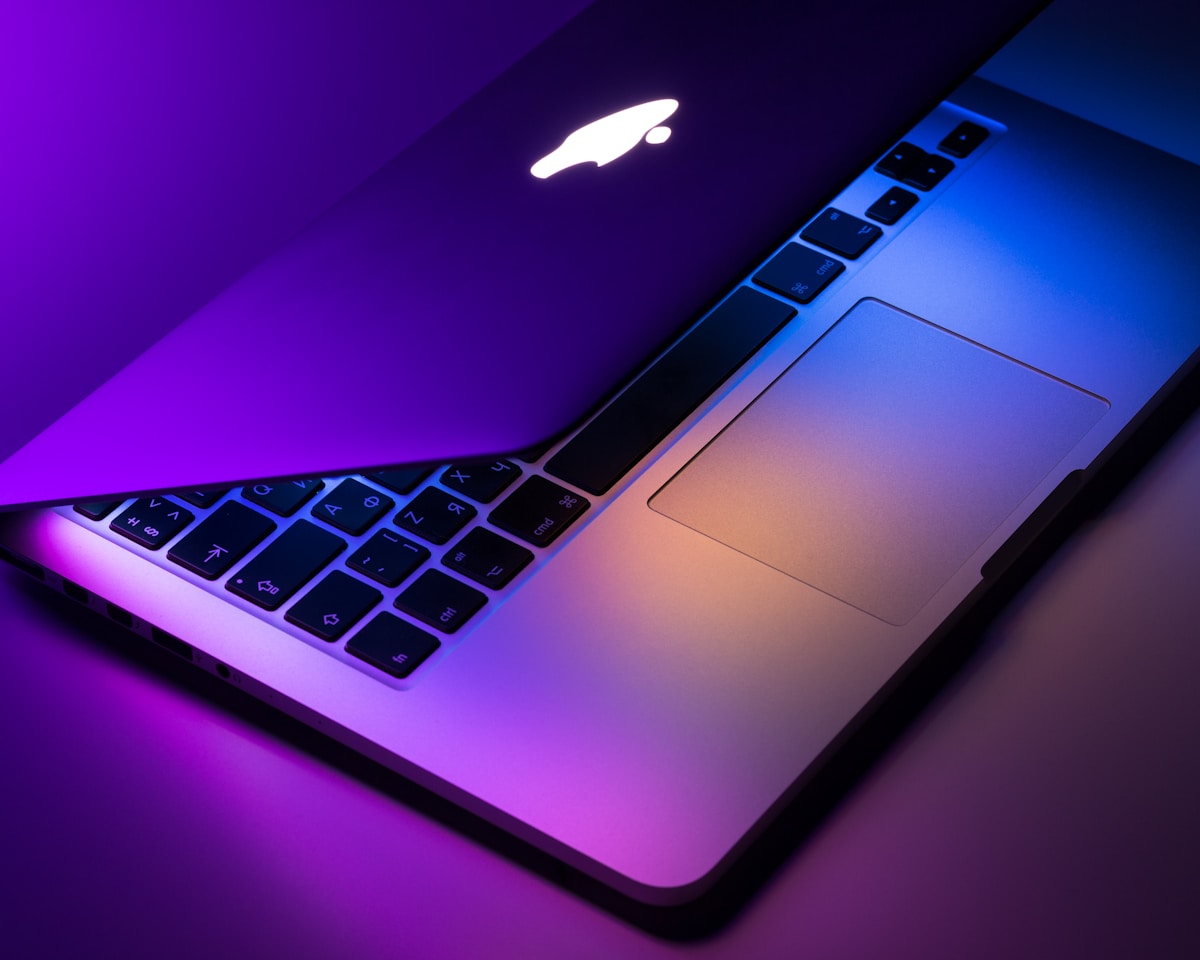
Mac M1/M2/M3 LLM Compatibility — What Can Your Mac Run?
A complete guide to running AI models on Apple Silicon Macs. Which models work on M1, M2, and M3 chips, how much RAM you need, and real performance benchmarks.
Apple Silicon Macs are among the best computers for running local AI. Their unified memory architecture means the GPU can access all your RAM — something discrete GPUs can't do. This guide covers exactly what each Mac can run.
Why Macs Are Great for Local AI
Unified Memory: The M-series chip shares RAM between CPU and GPU. If you have 16GB, the GPU can use all 16GB for model inference. On a PC, the GPU is limited to its VRAM (typically 8-24GB).
Metal Acceleration: Ollama automatically uses Apple's Metal framework for GPU acceleration. No configuration needed.
Power Efficiency: Macs run AI models at a fraction of the power draw of desktop GPUs.
Mac Model Compatibility
8GB Macs
Macs: MacBook Air M1/M2 base, Mac Mini base, MacBook Pro M1/M2 base
Best models:
| Model | Command | Speed (M2) |
|---|---|---|
| Llama 3.2 3B | ollama run llama3.2:3b | ~40 tok/s |
| Llama 3.1 8B | ollama run llama3.1 | ~18 tok/s |
| Qwen 2.5 7B | ollama run qwen2.5:7b | ~20 tok/s |
| Mistral 7B | ollama run mistral:7b | ~22 tok/s |
| DeepSeek R1 8B | ollama run deepseek-r1:8b | ~15 tok/s |
Experience: Good for basic chat and coding. Close other apps when running models to free RAM.
16GB Macs
Macs: MacBook Air/Pro M2 16GB, Mac Mini M2 Pro 16GB, MacBook Pro M1 Pro 16GB
Best models:
| Model | Command | Speed (M2 Pro) |
|---|---|---|
| Qwen 2.5 14B | ollama run qwen2.5:14b | ~14 tok/s |
| Llama 3.1 8B | ollama run llama3.1 | ~25 tok/s |
| DeepSeek R1 8B | ollama run deepseek-r1:8b | ~20 tok/s |
| Qwen 2.5 7B | ollama run qwen2.5:7b | ~30 tok/s |
Experience: Excellent. Qwen 2.5 14B is the sweet spot — high quality, good speed.
18-24GB Macs
Macs: MacBook Pro M3 Pro 18GB, Mac Studio M2 Max 32GB, MacBook Pro M2 Max 32GB
Best models:
| Model | Command | Speed |
|---|---|---|
| Qwen 2.5 14B | ollama run qwen2.5:14b | ~20 tok/s |
| All 8B models | varies | ~30+ tok/s |
Experience: Very good. Plenty of headroom for running 14B models alongside other apps.
32-36GB Macs
Macs: Mac Studio M2 Max 32GB, MacBook Pro M3 Max 36GB
Best models:
| Model | Command | Speed |
|---|---|---|
| Qwen 2.5 32B | ollama run qwen2.5:32b | ~10 tok/s |
| Mixtral 8x7B | ollama run mixtral:8x7b | ~8 tok/s |
| Qwen 2.5 14B | ollama run qwen2.5:14b | ~22 tok/s |
Experience: Professional tier. Can run 32B models at usable speed.
64-128GB Macs
Macs: Mac Studio M2 Ultra 64GB/128GB, MacBook Pro M3 Max 64GB/128GB
Best models:
| Model | Command | Speed |
|---|---|---|
| Llama 3.1 70B | ollama run llama3.1:70b | ~12 tok/s |
| Qwen 2.5 32B | ollama run qwen2.5:32b | ~18 tok/s |
| All smaller models | varies | Very fast |
Experience: Top tier. Can run 70B models that rival GPT-4. The best consumer hardware for local AI.
Quick Reference: Which Mac, Which Models?
| Mac | RAM | Max Model | Daily Driver |
|---|---|---|---|
| MacBook Air M1 | 8 GB | 8B | Llama 3.1 8B |
| MacBook Air M2 | 8 GB | 8B | Qwen 2.5 7B |
| MacBook Air M2 | 16 GB | 14B | Qwen 2.5 14B |
| MacBook Pro M1 Pro | 16 GB | 14B | Qwen 2.5 14B |
| MacBook Pro M2 Pro | 16 GB | 14B | Qwen 2.5 14B |
| Mac Mini M2 Pro | 16 GB | 14B | Qwen 2.5 14B |
| MacBook Pro M3 Pro | 18 GB | 14B | Qwen 2.5 14B |
| Mac Studio M2 Max | 32 GB | 32B | Qwen 2.5 32B |
| MacBook Pro M3 Max | 36 GB | 32B | Qwen 2.5 32B |
| Mac Studio M2 Ultra | 64 GB | 70B | Llama 3.1 70B |
Getting Started on Mac
# Install Ollama (one command)
curl -fsSL https://ollama.com/install.sh | sh

# Run your first model
ollama run llama3.2

# Or install LM Studio for a GUI experience
# Download from https://lmstudio.ai
Performance Tips for Mac
- Metal acceleration is automatic — Ollama detects your Mac's GPU and uses it
- Close memory-heavy apps — Chrome tabs, Slack, and Electron apps use significant RAM
- Use Activity Monitor — check "Memory Pressure" before loading large models
- Keep macOS updated — Apple regularly improves Metal performance
- Use Q4_K_M quantization — best balance for Apple Silicon
- Don't run multiple models simultaneously — load one at a time
Mac vs PC for Local AI
| Aspect | Mac (Apple Silicon) | PC (discrete GPU) |
|---|---|---|
| Max usable RAM for AI | All system RAM | GPU VRAM only |
| 16GB Mac vs 16GB PC | Uses all 16GB | GPU VRAM limited (8-12GB) |
| Setup | Install Ollama, done | Install drivers, CUDA, then Ollama |
| Power usage | Very low | High |
| Noise | Silent | Fan noise under load |
| Upgrade RAM | Buy new Mac | Easy on desktop PCs |
| Best value tier | 16GB Mac Mini | RTX 4090 PC |
Key insight: A 16GB Mac can run models that require a PC with a 16GB GPU — but the Mac costs less and uses less power.
Summary
Apple Silicon Macs are excellent for local AI thanks to unified memory. Any Mac with 8GB+ RAM can run useful models. For the best experience, 16GB (running Qwen 2.5 14B) is the sweet spot.
Next Steps
- Getting Started with Local AI
- Ollama Tutorial for Beginners
- Can 16GB RAM Run LLMs? — deeper 16GB analysis
More Posts
Best AI Models for 8GB RAM — What Can You Run Locally?
GuideA complete guide to the best LLMs you can run on a computer with 8GB of RAM. Includes benchmarks, practical recommendations, and setup commands for each model.

How to Run Llama Locally — Step-by-Step Guide for 2026
TutorialRun Meta's Llama models on your own computer. Covers Llama 3.2 and 3.1, model size selection by RAM, and step-by-step setup with Ollama and LM Studio.

Local RAG Tutorial — Chat with Your Documents Using Free AI Tools
TutorialA step-by-step guide to setting up Retrieval-Augmented Generation (RAG) locally. Chat with your PDFs, documents, and knowledge base — fully offline and private.